JRockit – JRCMD useful commands

I have been using JRockit since many years 2007. I find it slower than Hotspot, but it has been always better on diagnosis and analysis of problems. Since last summer, I have been working for an international telecommunication systems vendor. We design and implement various products for telecom operators, on top of HP OpenCall Convergent Communication Platform. I am fan of Open Source and Free Software, but this platform is running “only” with JRockit VM. We have tuning it for low latencies and runs very cool, but we have faced various problems, where JRockit has helped us a lot on troubleshooting.

I will describe here a few useful commands of JRCMD. JRCMD is a small command-line tool that can be used to interact with a running JRockit instance.

Summary:

  1. Get a thread dump
  2. Memory utilization
  3. Memory analysis of heap on a per-class basis
  4. State of VM
  5. Create a flight recording
  6. Produce a heap dump

Details:

1) Get a thread dump

$> jrcmd <pid> print_threads [nativestack=true]

This is the usual SIGQUIT handler, which prints all thread stacks. You can also get a thread using the classic way: “$> kill -3 <pid>

In any case you will get a thread dump like this:

===== FULL THREAD DUMP ===============
 Thu Jun 21 11:38:19 2012
 Oracle JRockit(R) R28.1.4-7-144370-1.6.0_26-20110617-2130-linux-ia32
"http-172.18.57.4-8080-58" id=46791 idx=0x4 tid=17680 prio=5 alive, waiting, native_blocked, daemon
 -- Waiting for notification on: org/apache/tomcat/util/net/JIoEndpoint$Worker@0x5eef4588[fat lock]
 at jrockit/vm/Threads.waitForNotifySignal(JLjava/lang/Object;)Z(Native Method)
 at java/lang/Object.wait(J)V(Native Method)
 at java/lang/Object.wait(Object.java:485)
 at org/apache/tomcat/util/net/JIoEndpoint$Worker.await(JIoEndpoint.java:415)
 ^-- Lock released while waiting: org/apache/tomcat/util/net/JIoEndpoint$Worker@0x5eef4588[fat lock]
 at org/apache/tomcat/util/net/JIoEndpoint$Worker.run(JIoEndpoint.java:441)
 at java/lang/Thread.run(Thread.java:662)[optimized]
 at jrockit/vm/RNI.c2java(IIIII)V(Native Method)
 -- end of trace
"(Signal Handler)" id=2 idx=0x8 tid=21213 prio=5 alive, native_blocked, daemon
"(OC Main Thread)" id=3 idx=0xc tid=21214 prio=5 alive, native_waiting, daemon
"(GC Worker Thread 1)" id=? idx=0x10 tid=21215 prio=5 alive, daemon
"(GC Worker Thread 2)" id=? idx=0x14 tid=21216 prio=5 alive, daemon
"(Code Generation Thread 1)" id=4 idx=0x18 tid=21217 prio=5 alive, native_waiting, daemon
"(Code Optimization Thread 1)" id=5 idx=0x1c tid=21218 prio=10 alive, native_waiting, daemon
"(Code Optimization Thread 2)" id=6 idx=0x20 tid=21219 prio=10 alive, native_waiting, daemon
"(VM Periodic Task)" id=7 idx=0x24 tid=21220 prio=10 alive, native_blocked, daemon
"Finalizer" id=8 idx=0x28 tid=21221 prio=8 alive, native_waiting, daemon
 at jrockit/memory/Finalizer.waitForFinalizees(J[Ljava/lang/Object;)I(Native Method)
 at jrockit/memory/Finalizer.access$700(Finalizer.java:12)[optimized]
 at jrockit/memory/Finalizer$4.run(Finalizer.java:189)
 at java/lang/Thread.run(Thread.java:662)
 at jrockit/vm/RNI.c2java(IIIII)V(Native Method)
 -- end of trace
"Reference Handler" id=9 idx=0x2c tid=21222 prio=10 alive, native_waiting, daemon
 at java/lang/ref/Reference.waitForActivatedQueue(J)Ljava/lang/ref/Reference;(Native Method)
 at java/lang/ref/Reference.access$100(Reference.java:11)
 at java/lang/ref/Reference$ReferenceHandler.run(Reference.java:82)
 at jrockit/vm/RNI.c2java(IIIII)V(Native Method)
 -- end of trace
...
...

2) Memory utilization

$> jrcmd <pid> print_memusage

This command can help you with out of memory errors. It analyses (in summary) the memory allocated by java process (including native code).  Columns: a) The name of a memory space, b) How much memory is mapped for that space, c) Extra details. A sample run is the following:

Total mapped                  2110560KB           (reserved=6044KB)
-              Java heap      1572864KB           (reserved=0KB)
-              GC tables        52620KB          
-          Thread stacks        55060KB           (#threads=306)
-          Compiled code        23872KB           (used=21690KB)
-               Internal          776KB          
-                     OS        23368KB          
-                  Other       257328KB          
-        Java class data       123648KB           (malloced=123375KB #169700 in 29996 classes)
- Native memory tracking         1024KB           (malloced=296KB #8)

3) Memory analysis of heap on a per-class basis

$> jrcmd <pid> print_object_summary

Prints details of all the instances on the heap on a per-class basis, together with a differential value of how the memory usage has changed. Columns: a) Percentage of heap that objects of this class occupy, b) The total size occupied by the instances of a specific class, c) The number of instances of a specific class, d) The change in size from the first invocation of this command, e) The full name of the class. Check the next sample run, where we might have a problem with objects of class “org/adrianos/MyDTO”:

--------- Detailed Heap Statistics: ---------
61.1% 939735k  6772960 +939735k [C
16.4% 252243k 10762404 +252243k java/lang/String
 7.0% 107516k  3947228 +107516k [Ljava/lang/String;
 4.5% 69265k   369180 +69265k [Ljava/lang/Object;
 1.6% 24127k   205889 +24127k org/adrianos/MyDTO
 1.3% 19486k  1247140 +19486k java/lang/Long
 1.0% 15551k    26621 +15551k [B
 0.6% 8871k     9700  +8871k [I
 0.6% 8710k   103896  +8710k [Ljava/util/HashMap$Entry;
     1537175kB total ---

--------- End of Detailed Heap Statistics ---

4) State of VM

$> jrcmd <pid> print_vm_state

This command produce an output similar to the dump file that is normally created when a JRockit instance crashes. It shows various information of VM like command line arguments of java process, uptime, CPU type, state of heap, loaded modules, libc release, etc.. Check the next excerpt of a sample run:

Uptime       : 5 days, 16:29:55 on Thu Jun 21 12:02:34 2012
Version      : Oracle JRockit(R) R28.1.4-7-144370-1.6.0_26-20110617-2130-linux-ia32
CPU          : Intel Westmere (HT) SSE SSE2 SSE3 SSSE3 SSE4.1 SSE4.2 Core Intel64
Number CPUs  : 8
Tot Phys Mem : 12632571904 (12047 MB)
OS version   : Red Hat Enterprise Linux Server release 5.5 (Tikanga)
Linux version 2.6.18-194.26.1.el5PAE (mockbuild@x86-002.build.bos.redhat.com) (gcc version 4.1.2 20080704 (Red Hat 4.1.2-48)) #1 SMP Fri Oct 29 14:28:58 EDT 2010 (i686)
Thread System: Linux NPTL
LibC release : 2.5-stable
Java locking : Lazy unlocking enabled (class banning) (transfer banning)
State        : JVM is running (Main thread has finished)
Command Line : -Dprogram.name=run.sh -Xms1536M -Xmx1536M -Djava.net.preferIPv4Stack=true -Xverbose:gc,memory -XverboseLog:/tmp/gc-jrockit.log -Xbootclasspath/p: -XXaggressive -XXcompaction:heapParts=1536 -Xgc:genconcon -Xns:150M -XXgcThreads:2 -XXgcTrigger:50 -XXcompaction:internalPercentage=1.0 -XXcompaction:externalPercentage=1.0 -Xmanagement -Djrockit.managementserver.port=4646 -Dcom.sun.management.jmxremote.ssl=false -Djava.net.preferIPv4Stack=true -Djava.endorsed.dirs=/var/lib/OC/imsc/lib/endorsed -Dsun.java.launcher=SUN_STANDARD com.adrianos.Main 
Repository   : /tmp/2012_06_15_19_32_40_21109
java.home    : /usr/java/jrockit-jdk1.6.0_26-R28.1.4-4.0.1.orig/jre
StackOverFlow: 0 StackOverFlowErrors have occured
OutOfMemory  : 0 OutOfMemoryErrors have occured
C Heap       : Good; no memory allocations have failed
GC Strategy  : Mode: pausetime, with strategy: genconcon (basic strategy: genconcon)
GC Status    : OC is not running. Last finished OC was OC#5287.
             : YC is not running. Last finished YC was YC#16925.
YC Promotion : Last YC successfully promoted all objects
YC History   : Ran 3 YCs before OC#5283.
             : Ran 3 YCs before OC#5284.
             : Ran 3 YCs before OC#5285.
             : Ran 3 YCs before OC#5286.
             : Ran 3 YCs before OC#5287.
             : Ran 2 YCs since last OC.
Heap         : 0x5661a000 - 0xb661a000  (Size: 1536 MB)
Compaction   : (no compaction area)
Allocation   : TLA-min: 2048, TLA-preferred: 20480 TLA-waste limit: 2048
NurseryList  : 0x869370d8 - 0x941e0390
KeepArea     : 0x8da6c078 - 0x941e0390
KA Markers   : [ 0x8b4857c8,  0x8da6c078 , 0x941e0390 ]
Forbidden A  : (none)
Previous KA  : 0x8b4857c8 - 0x8da6c078
Previous FA  : (none)
CompRefs     : References are 32-bit.
...
...
Loaded modules:
08048000-08057193  /usr/java/jrockit-jdk1.6.0_26-R28.1.4-4.0.1.orig/bin/java
b7f12000-b7f1262b  /usr/java/jrockit-jdk1.6.0_26-R28.1.4-4.0.1.orig/bin/java
...
...

5) Create a flight recording

$> jrcmd <pid> start_flightrecording name=myrecord1 filename=/var/tmp/myrecord1.jfr duration=60s compress=true settings=/my/path/xxx.jfs

Starts a JRockit Flight Recorder recording that can help you analyse the behaviour of your code and find potentials problems (like bottlenecks). This is really useful to understand what your threads are doing. There re many templates located in the JROCKIT_HOME/jre/lib/jfr  directory.

6) Produce a heap dump

$> jrcmd <pid> hprofdump filename=/tmp/jrockit1.hprof

Produce heap dumps in the popular HPROF format that can be used to resolve memory leaks or have a better understanding of your code. You can analyse this file using the excellent Eclipse Memory Analyzer Tool (MAT) or default Java memory analyser VisualVM.

General Tips:

  1. You have to be careful with the last 2 commands as they are very useful, but need extra resources from JVM. Avoid to execute them on high traffic hours, except you really need them. Keep in mind that if JVM is at very “difficult” state, it will not permit such actions.
  2. MAT is a great tool and I love it. BUT if you want to be fully prepared you have to also play with VisualVM as exists in default installation of Hotspot. This means that VisualVM is always there and you do not need an extra graphical tool to check something simple. I have been in a such case, where I did not have internet access and my laptop use was prohibited.

I hope you will find these details useful. If you have need any clarifications, please ask.

Regards,
Adrianos Dadis.

Democracy Requires Free Software

Posted in Administration, Java, Software Development | Tagged , , , , | 9 Comments

Run JBoss 7 in debug mode

As you already know JBoss 7.1 is released. It is great, it has still many open bugs, but I like it a lot 🙂

If you want to debug your application, which is running on JBoss 7, then you should run JBoss in debug mode. This is very easy. Open a GNU/Linux terminal and execute these commands:

$> cd /path/to/jboss7/bin
$> export JAVA_OPTS="-Xrunjdwp:transport=dt_socket,address=8787,server=y,suspend=n"
$> ./standalone.sh -c standalone-full.xml
JAVA_OPTS already set in environment; overriding default settings with values: -Xrunjdwp:transport=dt_socket,address=8787,server=y,suspend=n
...
Listening for transport dt_socket at address: 8787
...
22:32:45,730 INFO [org.jboss.as] (Controller Boot Thread) JBAS015874: JBoss AS 7.1.0.Final "Thunder" started in 2907ms - Started 168 of 244 services (75 services are passive or on-demand)

OK, server started in debug mode. Now, you have to deploy your application to JBoss 7.
You can deploy your application to JBoss 7 using the new CLI tool (which is really cool):

$> cd /path/to/jboss7/bin
$> ./jboss-cli.sh
[disconnected /] connect
[standalone@localhost:9999 /] deploy /path/to/your/app.war

Check that your application is started and the go to next step.
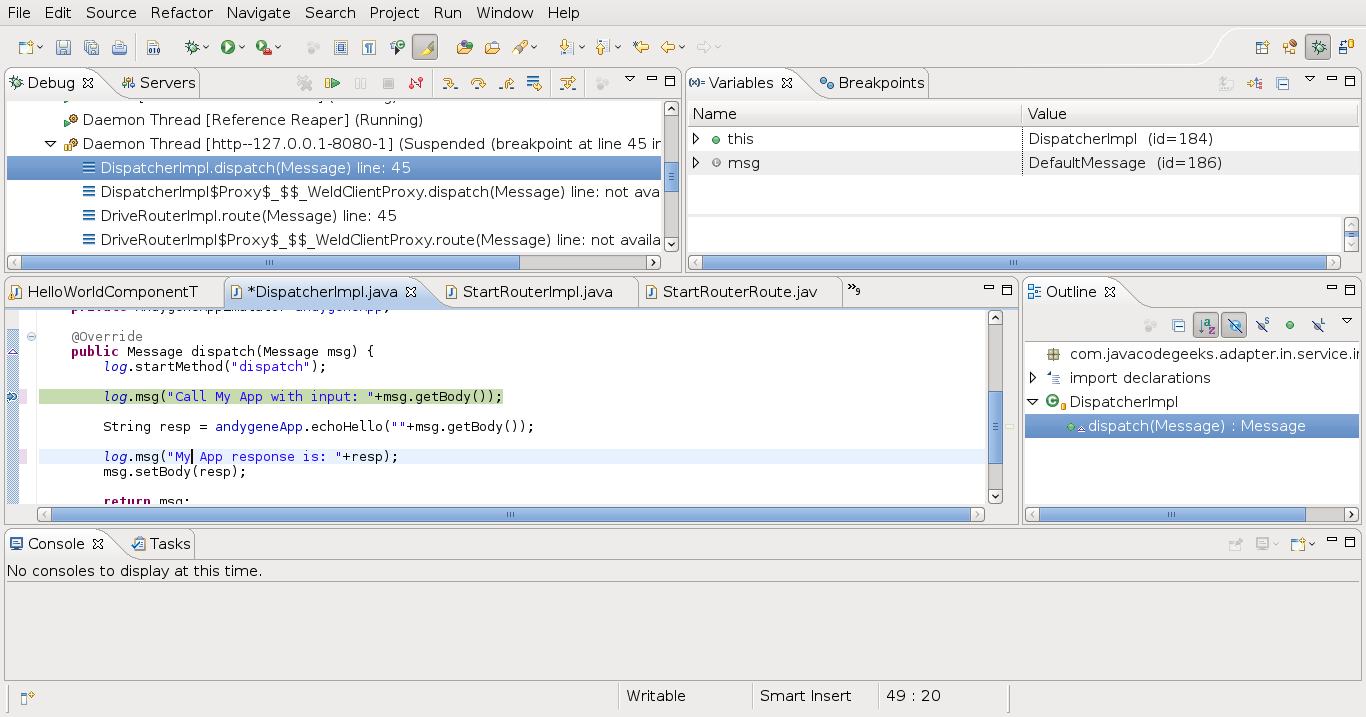
You can connect your Eclipse (I use Indigo) on debug port (8787) of JBoss and debug your application within Eclipse. Follow this Eclipse path using your mouse 🙂

  1. Run -> Debug Configurations… -> Remote Java Application -> Right click -> New
  2. Then on Connect tab, set these Connection Properties:
    1. Host = localhost
    2. Port = 8787
  3. Then select your Project and in Source tab add extra projects or libraries.
  4. Press Apply button
  5. Press Debug button
  6. You are connected!!!
  7. Add a Breakpoint in your code
  8. Trigger your application to reach a Breakpoint
  9. Voila 🙂
Eclipse debug application

Eclipse debug application

Happy hacking 🙂

Regards,
Adrianos Dadis.

Democracy Requires Free Software

Posted in Java, Java EE, JBoss, Software Development | Tagged , , , | 7 Comments

Setup Git server with read/write HTTPS on Debian

Three months ago we decided to move our projects to Git. I guess you already know the advantages of Git over Subversion, as there are too many discussions for this subject. I will describe here a fast and minimal configuration of how to turn a Debian GNU/Linux box to a Git server that supports read and write actions via HTTP(S).

Git supports 4 network protocols to transfer data: SSH, Local, Git, and HTTP(S). Many people are behind a firewall, which most of times permit access only to HTTP(S). Until recently, Git HTTP(S) was working only for read actions (only clone, fetch, pull, …). Almost 2 years ago Smart HTTP Transport came up. Using these clever cgi scripts, which now are part of stable Git, we can easily setup a Git server that supports read/write via HTTP(S).

Configuration steps

1) Install all required packages on Debian:

$> su -
$> apt-get install git apache2 apache2-utils openssl

2) As we need many Git repositories, we create a base directory that all repositories will be included.

$> mkdir -p /opt/allgit/repos

3) Create a bare Git repository, where developers can pull and push code.

$> cd /opt/allgit/repos
$> mkdir repo1.git
$> cd repo1.git
$> git init --bare

4) We will use Apache 2 HTTP server to support HTTP(S) for Git. On Debian, when you install apache2 package, user www-data is created and is the user of Apache. As we need Apache to execute the Git actions, then www-data user must have read and write permissions on each Git repository.

$> chown -R www-data:www-data repo1.git/

5) The www-data user is used only by Apache and not by developers, so we need to define our Git users somewhere else. We can use HTTP authentication that is provided by Apache. We can use htpasswd, which is an Apache tool that produce an encrypted password from a plain text password for a user. These users are irrelevant to Unix users of OS. So, using this strategy we can define as many Git users as we need, without creating Unix users. Create a specific directory and file, with restricted privileges to www-data user, in order to keep git users and passwords.

$> mkdir /etc/gitdata
$> cd /etc/gitdata
$> htpasswd -c gitusers.passwd gituser1
$> htpasswd gitusers.passwd gituser2

6) I choose to use secure HTTP for Git communication. So, I created a self signed SSL certificate using openssl. On the same directory create the certificate and the private keys pair. Fill all the fields you like that the next command requires.

$> openssl req -x509 -nodes -days 999 -newkey rsa:2048 -keyout mygit_ssl.key -out mygit_ssl.crt

7) Also, we need a few modules to be enabled on Apache, so make sure mod_ssl, mod_cgi, mod_alias, and mod_env are enabled. This can be easily done on Debian with a2enmod command, where it create symbolic links in the next directory.

$> a2enmod <apache_module>
$> ls /etc/apache2/mods-enabled/

8) Now you only need to configure Apache site and you are ready. Assume you already have a domain name (e.g. mygitdomain.com) in order to use it for your server. A fast way to configure your Apache site(and test immediately) is to copy the existing configuration of Apache and make the required configuration changes.

$> cd /etc/apache2/sites-available
$> cp default-ssl mygitdomain.com

9) Add (or alter) the existing configuration of mygitdomain.com file, which you just created, based on the next configuration.

ServerName mygitdomain.com
ServerAdmin webmaster@localhost
ErrorLog /var/log/apache2/git_apache_error.log

SetEnv GIT_PROJECT_ROOT /opt/allgit
SetEnv GIT_HTTP_EXPORT_ALL
SetEnv REMOTE_USER=$REDIRECT_REMOTE_USER
ScriptAlias /allgit/ /usr/lib/git-core/git-http-backend/

<Directory "/usr/lib/git-core/">
  AllowOverride None
  Options +ExecCGI -Includes
  Order allow,deny
  Allow from all
</Directory>

<LocationMatch "^/allgit/repos/.*$">
  AuthType Basic
  AuthName "My Git Repositories"
  AuthUserFile /etc/gitdata/gitusers.passwd
  Require valid-user
</LocationMatch>
SSLEngine on

SSLCertificateFile    /etc/gitdata/mygit_ssl.crt
SSLCertificateKeyFile /etc/gitdata/mygit_ssl.key

Test your Git server

1) Configuration is finished. Enable this site in your Apache server and then restart Apache.

$> a2ensite mygitdomain.com
$> /etc/init.d/apache2 restart

2) Try to clone your empty git repository.

$> git clone https://mygitdomain.com/allgit/repos/repo1.git repo1

Certificate verification error

error: server certificate verification failed. CAfile: /etc/ssl/certs/ca-certificates.crt CRLfile: none while accessing https://mygitdomain.com/allgit/repos/repo1.git/info/refs
fatal: HTTP request failed

You have 3 options to solve this:

  1. Set this variable in the current shell (will be enabled for all the following commands).
    1. $> export GIT_SSL_NO_VERIFY=false
  2. Set before each git command the same variable as before.
    1. $> env GIT_SSL_NO_VERIFY=true
  3. In order to treat your certificate as trusted, even it is a self signed certificate, you can get server’s certificate and install it on one of the next directories:
    1. /etc/ssl/certs/
    2. /usr/share/ca-certificates/

Notes
This is just a fast configuration that I did 3 months ago in order to evaluate Git. There are many points that you can improve (stronger security) in order to have a better configuration.
All the configuration is make by root user.

Regards,
Adrianos Dadis.

Democracy requires Free Software

Posted in Administration, GNU/Linux, Software Development | Tagged , , | 13 Comments

Member of Java Code Geeks development team – Delayed Announcement

I am proud to announce that I am a member of Java Code Geeks development team, since October of 2011!!!
This announcement is a little bit delayed, but I was very excited with the team and with the work we do that I forgot to write a such simple post.

In JCG Dev Team, we design very funny things and when we will be ready, we will expose it as an open source project. Panagiotis Paterakis, Byron Kiourtzoglou and Ilias Tsagklis are very skilled engineers with great ideas. I believe, all together, we will create useful, robust and efficient software.

Keep an eye for future posts here and of course on Java Code Geeks.

Adrianos Dadis.

Democracy requires Free Software

Posted in Personal, Software Development | Tagged , | 2 Comments

m2e fix – Plugin execution not covered by lifecycle configuration

I mainly use Apache Maven 2.2.1 via m2e plugin inside Eclipse. This time, I develop software using amazing JBoss 7.

Recently, I decided to use JBoss Logging and JBoss Logging Tools in my projects, in order to create my custom type-safe Logger. After reading JBossLoggingTooling, I add the required configuration for “maven-compiler-plugin” and “maven-processor-plugin” in my pom.xml. Immediately, I noticed 2 errors  in Markers View of my Eclipse. The errors were the following:

Plugin execution not covered by lifecycle configuration: org.bsc.maven:maven-processor-plugin:2.0.2:process (execution: process, phase: generate-sources)    pom.xml    /human-mind    line 260    Maven Project Build Lifecycle Mapping Problem

Plugin execution not covered by lifecycle configuration: org.bsc.maven:maven-processor-plugin:2.0.2:process-test (execution: process-test, phase: generate-test-sources)    pom.xml    /human-mind    line 275    Maven Project Build Lifecycle Mapping Problem

Both errors are related to m2e plugin and caused because m2e has changed how handles the plugin execution (please check related M2E wiki).  I fix it by adding the following pluginManagement configuration inside my pom.xml:

<pluginManagement>
  <plugins>
    <plugin>
      <groupId>org.eclipse.m2e</groupId>
      <artifactId>lifecycle-mapping</artifactId>
      <version>1.0.0</version>
      <configuration>
        <lifecycleMappingMetadata>
          <pluginExecutions>
            <pluginExecution>
              <pluginExecutionFilter>
                <groupId>org.bsc.maven</groupId>
                <artifactId>maven-processor-plugin</artifactId>
                <versionRange>[2.0.2,)</versionRange>
                <goals>
                  <goal>process</goal>
                </goals>
              </pluginExecutionFilter>
              <action>
                <execute >
                  <runOnIncremental>false</runOnIncremental>
                </execute >
              </action>
            </pluginExecution>
            <pluginExecution>
              <pluginExecutionFilter>
                <groupId>org.bsc.maven</groupId>
                <artifactId>maven-processor-plugin</artifactId>
                <versionRange>[2.0.2,)</versionRange>
                <goals>
                  <goal>process-test</goal>
                </goals>
              </pluginExecutionFilter>
              <action>
                <execute >
                  <runOnIncremental>false</runOnIncremental>
                </execute >
              </action>
            </pluginExecution>
          </pluginExecutions>
        </lifecycleMappingMetadata>
      </configuration>
    </plugin>
  </plugins>          
</pluginManagement>

If you want to use JBoss Logging Tools and m2e, then you have to make the above change in order to avoid annoying errors in Eclipse Marker View. This is a m2e problem and you may face it in any case you need to define/change the execution of a Maven plugin.

After add the above configuration in pom.xml, then you will see the same error that I mentioned in my previous post (follow the same procedure).

Regards,
Adrianos Dadis.

Democracy requires Free Software

Posted in Java, JBoss, Software Development | Tagged , , , | Leave a comment